
How to Make a Rap Video: Photos, Lyrics and Audio
Plan a rap video from photos, write a useful brief and prepare audio. A practical guide to the preview tools and what still needs AI generation.
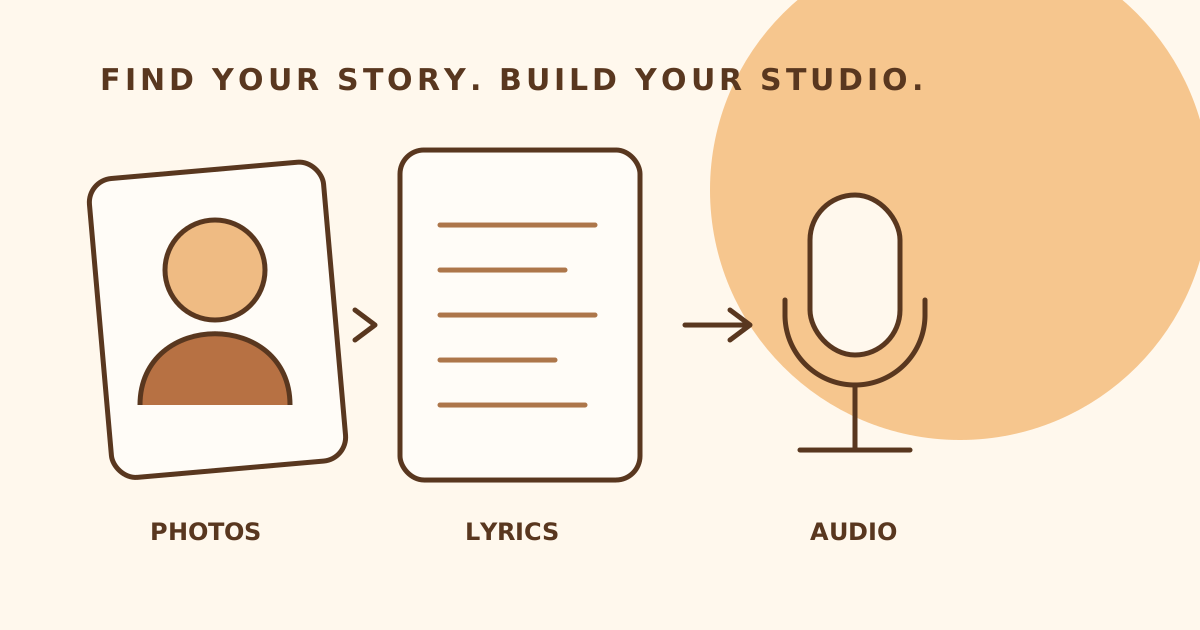
A good rap video starts with a clear idea: who is performing, what they are saying and what the viewer should feel. You can prepare those decisions before choosing a generation model.
Current product status: the studios support local previews and writing drafts. AI lyrics, performed vocals and rendered video are not connected yet. This guide separates the steps you can try today from the production steps that come later.
1. Pick a story and a format
For a two-person template, start in the Hotel Lobby studio. For a back-and-forth exchange, use the rap battle writing preview. A birthday works best when you can name a specific memory or running joke.
Write one sentence describing the scene. “Two friends trading lines about who always misses the train” is a more useful brief than “make a cool rap video.”
2. Choose clear performer photos
Prepare a separate photo for each performer. Choose a clear face, even lighting and minimal obstruction. In Hotel Lobby, left and right describe the intended positions in the video; the swap button changes the lineup.
The preview accepts JPG, PNG and WebP files up to 8 MB each. Selected photos stay in browser memory. Leaving or refreshing the studio clears them. They are not applied to the reference videos.
Do not judge identity preservation from the local photo preview. That will require actual model output. Background, movement and lip sync also need their own tests.
3. Draft lyrics with a verse and a hook
Open the rap lyrics editor, choose a starting idea and edit the sample. Put details and story in the verse; use the hook for a short phrase the audience can remember.
The sample is original example text, not an AI response to your form. You can copy or download the text now. “Save on this device” stores the draft in that browser only, separately for each tool and interface language. It is not a cloud backup.
4. Prepare audio separately
Words on a page are not a performed song. If you already have audio you can use, try the audio setup preview. Load a supported file, choose a start and end, and listen to that range locally.
The range controls do not export a trimmed file. They do not generate vocals or animate the photos. If playback fails, choose a format your browser can decode and check that the selected times are within the file duration.
5. Review what is ready and what is pending
| You can do today | Still requires model integration | | ------------------------------------- | ------------------------------------------------------ | | Select and preview local photos | Replace performers in a rendered video | | Edit, copy and download sample lyrics | Generate new lyrics from the brief | | Save text drafts on the device | Store works in an account | | Listen to an audio range | Generate vocals or synchronize mouth movement | | Review cast and frame preferences | Confirm supported output settings, costs and downloads |
Before submitting a future paid generation, you should be able to see the supported settings and credit cost. Those have not been set for these previews.
A useful final checklist
- Each performer has an identifiable, separate photo.
- The brief says who is performing and what the story is.
- The lyrics are readable aloud and speaker labels are clear.
- Audio preparation is kept separate from writing and video generation.
- A downloaded text draft is saved if you want a copy outside the browser.
Need a starting point? Browse these rap music video ideas and choose the story that gives you something specific to say.