
How to Make an AI Rap Video for TikTok from Photos
Create a short vertical rap video from photos, check faces and sound, prepare captions and upload to TikTok. Includes a two-line idea and AI-labeling checks.
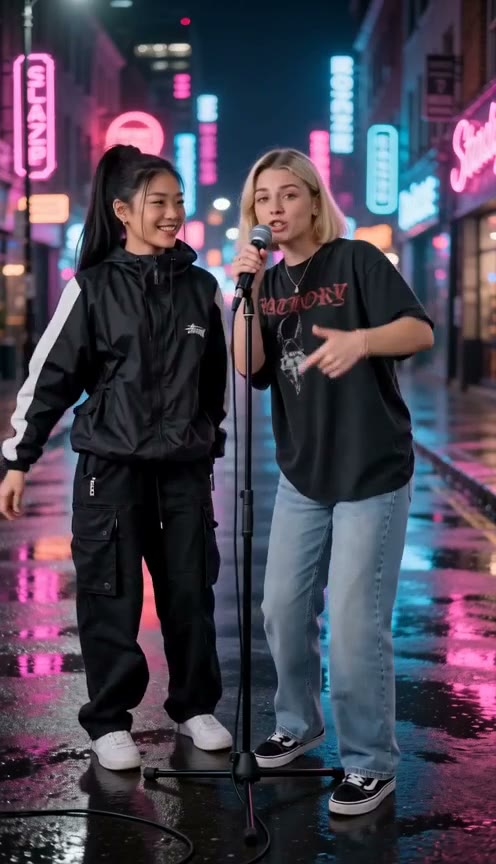
To make an AI rap video for TikTok, prepare a short verse and clear performer photos, generate a portrait video, review it, then download the file and upload it in TikTok. RapVideoGo creates the rap performance; captions, post settings and publication happen in a separate editing or posting step.
This workflow is for a short photo-based performance with AI vocals. If you already have a finished rap track that the video must follow, RapVideoGo's original studio does not accept that audio upload. See the tool workflow comparison before choosing a generator.
1. Give the short clip one payoff
Start with a joke, a reply or a greeting that makes sense without a long introduction. A two-line exchange can work as a writing draft:
A: Your five-minute text just turned into an hour.
B: I brought the snacks; that's my superpower.
Change the detail to something your audience recognizes. Keep the ending understandable on its own. More scene changes and a longer verse do not automatically make the post stronger, and no template guarantees views or virality.
For more starting points, browse six rap video ideas.
2. Choose the right tool and photos
Use Create Rap for a solo selfie or a shared duet, Rap Battle for two people answering each other, or Birthday Rap for a greeting.
Create Rap accepts one or two reference photos; Battle needs exactly two, and Birthday Rap allows one to three. Use clear JPG, PNG or WebP portraits up to 8 MB each. Use your own photo or photos of people who agreed to appear.
Choose a suitable template and replace the prepared lyrics. For a duet, A/B labels can request parts for the first and second reference performers. Keep camera notes out of the lyric box. AI arranges the delivery and shots, and the generated voices do not clone the people in the photos.
3. Set a portrait frame and check the quote
Choose 9:16 for a portrait feed, a duration from 4 to 15 seconds and an available resolution. This is the studio's generation range, not a statement about TikTok's maximum upload length. Check the current values again after choosing an example.
Use a short enough verse to leave room for the final line. The two-line example above is a writing starter, not a promise that every word will fit every duration. Generation uses credits; check the displayed cost before submitting.
4. Review the actual video on a phone-sized screen
Play the completed video from the appropriate generation history. Check that faces are visible, the intended person sings each line and the punchline is audible. Compare the last word with the end of the file so an abrupt cutoff does not spoil the joke.
Look at the portrait crop before sharing. If two faces feel crowded, choose a different template or frame shape for another version rather than assuming an upload setting will restore missing image area. Shorten rushed lyrics before another paid attempt. Failed generation returns its credits.
5. Prepare any text and captions
Download the successful video. If you want subtitles, add them with an editing tool before upload or use caption controls available in your posting app. Check names and rap slang against the actual audio; a transcript can mishear fast delivery.
Keep important text away from the edges and preview it with the posting interface visible. Avoid placing the punchline under interface buttons or the description area. RapVideoGo's original studio does not provide a subtitle editor or guarantee text in the generated image.
If you add or replace music in a later edit, listen again to check that the vocal performance still matches. Replacing an audio track does not make the already-generated mouth movements resynchronize.
6. Upload, label and preview before posting
In TikTok, use Add post to upload the saved video, then review the post settings and preview. For realistic AI-generated images, audio or video, TikTok requires an AI-content label. Check the AI-generated content setting in the upload flow; menu placement can vary with the app version.
Choose the intended audience, check the cover and description, then watch the uploaded preview with sound before publishing. Creating or downloading in RapVideoGo does not automatically post to a connected TikTok account.
For the underlying generation steps, read the photo-to-rap video tutorial. If the clip is a birthday gift, use the personalized birthday video walkthrough.